 Why choose Breeze
 Marketing
 Creative
 Sales
Sales Remote work
 Managers
 Product teams
 Project management
 Task management
 Kanban tool
 Time tracking
 Project reporting
 Project calendars
 Project timeline
 Team workload
 Project automation
 Project customization
 Chat
Chat Web forms
 Project roadmap
 AI
AI What's new
 Articles & guides
 Help center
 Mobile apps
 Integrations
 Developers & API
 Free tools
Audit your tag library in 10 minutes

Tags are supposed to make decisions easier. But most teams end up with a tag soup: Urgent, High, ASAP, Soon, Important, Maybe, Nice to have. Nobody remembers which ones matter, so tags stop being useful.
This 10-minute tag cleanup keeps only the labels that change what you do next, and it is one step in decluttering the whole board.
A good tag does one thing: it changes what you do next. If it does not change a decision, it is just decoration.
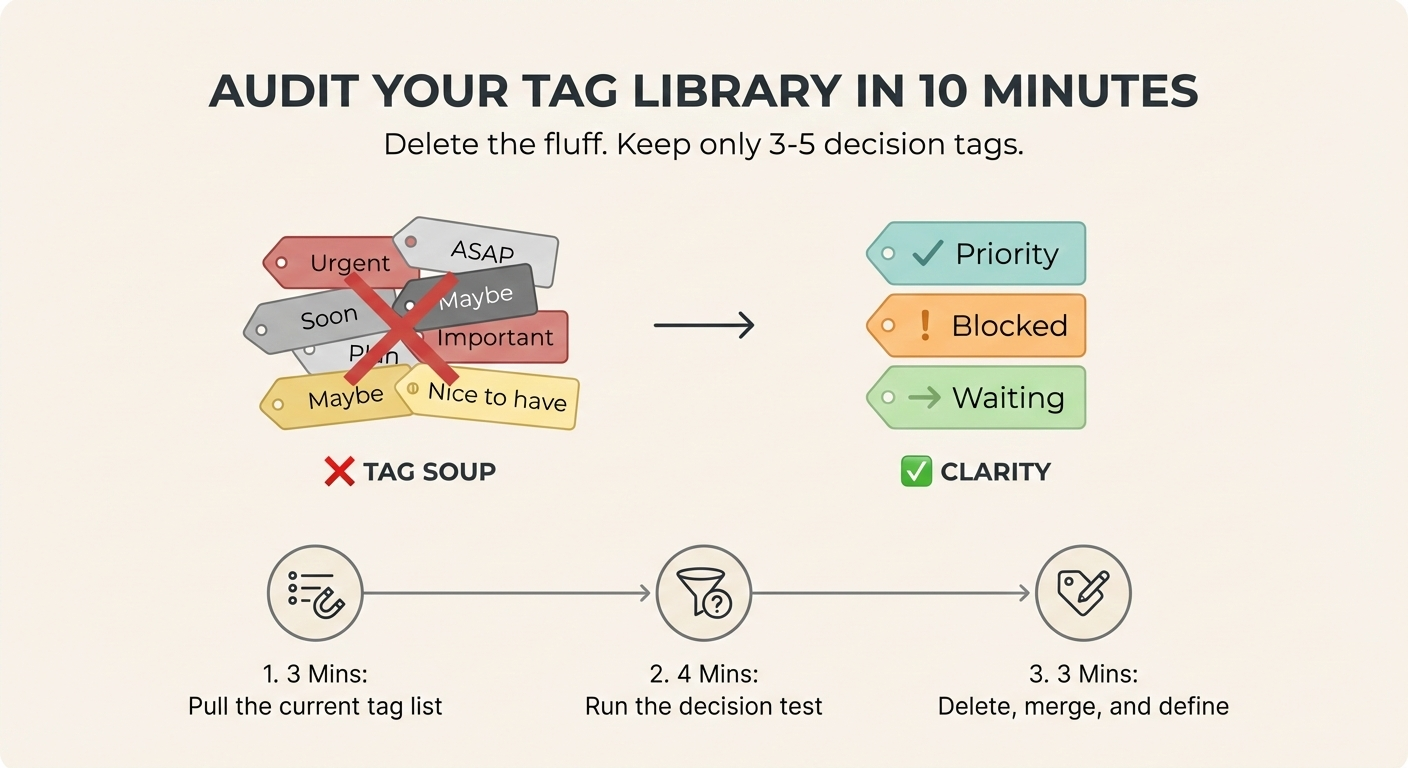
The 10-minute breakdown
- 3 mins: Pull the current tag list
- 4 mins: Run the decision test
- 3 mins: Delete, merge, and define
The 10-minute fix
1. Pull the current tag list (3 minutes)
Open your project and find the full list of tags in your settings. You are not tagging anything yet. You are just getting the inventory in front of you.
Fast shortcut: sort mentally into two piles - tags you actually filter by vs. tags you ignore.
2. Run the decision test (4 minutes)
For each tag, ask: if a task has this tag, does it change what happens next? If the answer is no, delete it or merge it into something clearer.
Examples of tags that usually fail the test: ASAP, Soon, Important, High, Low. They feel urgent, but they do not tell you what to do.
Examples of tags that pass: Blocked, Waiting on, Customer, Risk, Needs review. Each one triggers a specific action or a specific filter.
If you want a simple default set, keep five tags like these:
- Blocked: cannot move without input or a decision
- Waiting on: pending someone else
- Needs review: ready for feedback or approval
- Customer: tied to a specific customer or request
- Risk: has a real downside if it slips
3. Delete, merge, and define (3 minutes)
Pick 3 to 5 tags to keep. Then delete the rest, merging close duplicates. If you keep both Urgent and High, you will debate which one to use forever. Pick one or neither.
Finally, write one sentence for each keeper tag in your team guidelines. In Breeze, the easiest place is the project description or a pinned note. If you want the tag system to stay flexible, use project customization to adjust tags as your workflow changes.